Proofpoint Email Security: Fresno State | Faculty, Staff and Student Help Guide
Types of Emails Processed by Proofpoint
Proofpoint Email Security protects Fresno State email accounts by analyzing incoming messages and determining whether they should be delivered to Gmail, placed in quarantine, or blocked.
Which Categories Appear in the Proofpoint Daily Digest?
For Fresno State’s Proofpoint configuration, the Daily Digest may display three categories:
Spam: Messages identified as spam and held in quarantine.
Low Priority – Quarantine: Messages classified as low priority and held in quarantine.
Low Priority – Delivered: Messages classified as low priority that have already been delivered to Gmail.
Understanding Proofpoint Email Categories
Proofpoint examines incoming email to help protect Fresno State accounts from spam, phishing, malware, and other email threats.
Messages that pass security checks are delivered to Gmail. Messages identified as spam or unwanted bulk email may be placed in quarantine, where users can review and release legitimate messages.
Some low-priority messages are delivered directly to Gmail but still appear in the Proofpoint Daily Digest under Low Priority – Delivered. These messages do not need to be released.
| Proofpoint category | What it means | Action needed |
|---|---|---|
| Spam | Email identified as unsolicited or potentially unwanted and placed in quarantine. | Review and release only if legitimate. |
| Low Priority – Quarantined | Email classified as low priority and held in quarantine. | Release if you want to receive it. |
| Low Priority – Delivered | Email classified as low priority but already delivered to your mailbox. | No action is required to receive it. |
Release a Low Priority – Quarantined Email
- Open your Proofpoint quarantine digest by going to Proofpoint quarantine portal .
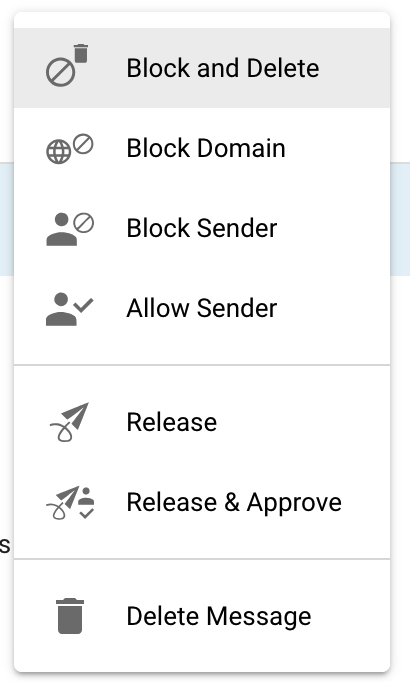
- Find the message. Verify the full sender address and make sure you were expecting the email. Allow Sender alone approves future messages.
- Select the message and open its actions menu. Choose Release to deliver this message. Multiple messages can be released. Choose Release and Approve to release and approve the sender.
- Check Gmail Inbox, Spam, and All Mail. Existing Gmail filters may move the message to another label.
Release a Low Priority – Delivered Email
Remember: Not every email listed in your Proofpoint Daily Digest is quarantined. Messages under Low Priority – Delivered have already been delivered to your Gmail account.
- Open Gmail and search for the message by sender or subject. This message has already been delivered.
- Check Inbox, Spam, and All Mail if you do not see it immediately.
- No Proofpoint release action is needed. Optionally, use Allow Sender for future messages from a trusted address.
- If the message is missing, check your Gmail filters or contact Fresno State Technology Services.
- If you’re unable to release the message, please call the Service Desk at 559-278-5000 or submit a support ticket for further assistance..
Release a Spam – Quarantined Email
- Open your Proofpoint quarantine digest by going to Proofpoint quarantine portal .
- Find the message. Verify the full sender address and make sure you were expecting the email. Allow Sender alone approves future messages.
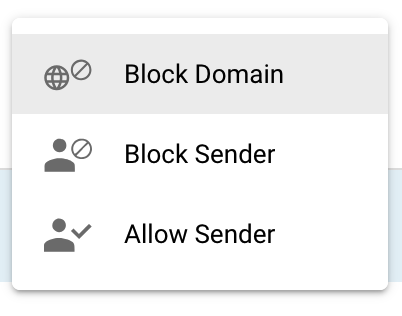
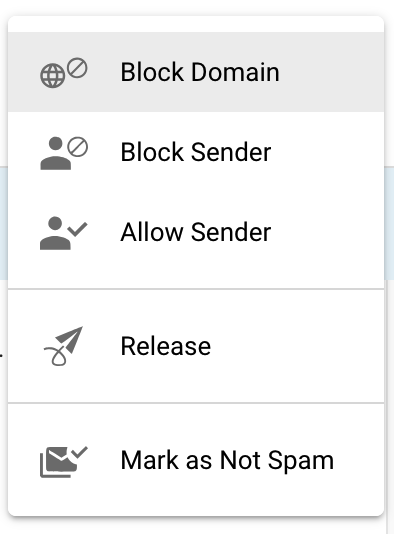
- Select the message and open its actions menu. Choose Release to deliver this message. Multiple messages can be released. Choose Allow Sender to approve the sender.
- Check Gmail Inbox, Spam, and All Mail. Existing Gmail filters may move the message to another label.
Choose the right action
| Action | Result |
|---|---|
| Release | Delivers the selected message; does not add the sender to your Allow List. |
| Release & Approve | Delivers the selected message and approves the sender for future messages. |
| Allow Sender | Approves the sender; does not deliver the selected message. |
| Block Sender | Adds the sender to the block list. |
| Block Domain | Blocks the sender’s domain; use cautiously because it can affect many addresses. |
| Block and Delete | Blocks the sender and deletes the selected message. |
Manage your Allow List
Use the Allow List for individual email addresses you recognize and trust. It can reduce unwanted spam quarantine, but other security controls may still stop unsafe messages.
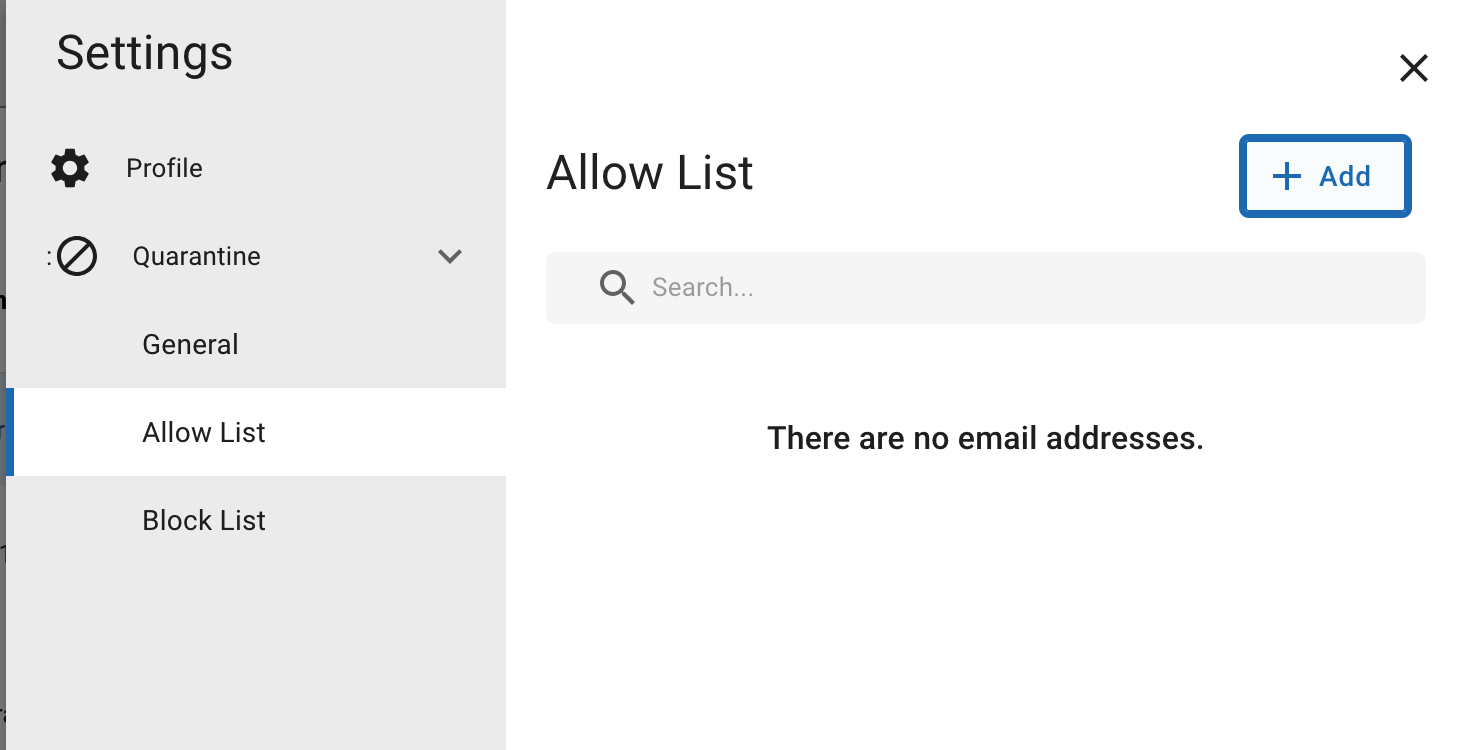
- In the Proofpoint portal, open Settings.
- Expand Quarantine, then select Allow List.
- Select Add and enter the trusted email address. Complete the on-screen save or confirmation action.
- To change an existing entry, use the entry’s available edit or removal controls.
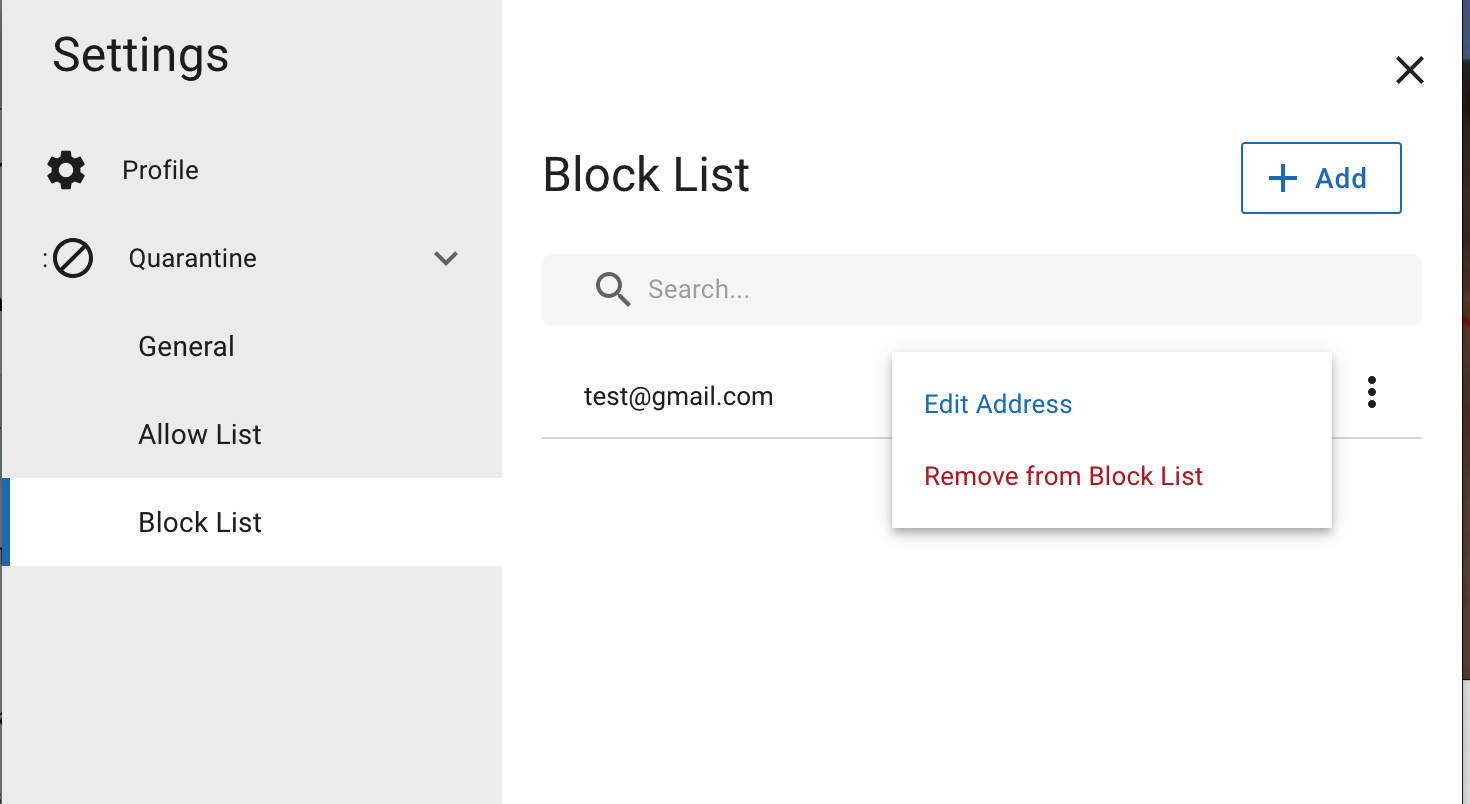
Manage your Block List
The Block List is for senders whose future messages you do not want delivered normally. Blocking a domain may affect multiple senders.
- In Settings, expand Quarantine and select Block List.
- Select Add to enter a sender address.
- To change an existing address, open its three-dot menu and select Edit Address or Remove from Block List.
Understand your quarantine digest
A Proofpoint digest summarizes messages held in your personal quarantine. If no new messages are quarantined, you may not receive a new digest. Review the sender and subject before releasing anything. You can also open the quarantine portal to review messages and manage lists.
Spam usually means unsolicited messages. Low-priority messages often include newsletters, announcements, or invitations. A message being quarantined does not mean it is safe to open.
This Word document is provided as a print-only reference document and may not be fully accessible to users of assistive technology. For more information, please visit Title II Rule on Digital Accessibility page.