FR_SA_SR_03053_Flexible_Student_Reporting User Guide
Process Description
| Process ID | FRSR0124 |
|---|---|
| Description | Report Student Data in a Flexible Way |
| Type | SQR |
| Functional Organization | Student Records |
| Project Analyst | Holly Baum |
| Prime Functional Contact | Laura Yager |
| Project Detail | https://paws.csufresno.edu/x/kwANBw |
Revision History
| Date Revised | Documentation Analysts Name | Description of Change |
|---|---|---|
| 07/28/2011 | Holly Baum | Revamped for PS 9.0 from Students in Terms with Options Report |
| 06/13/2012 | Holly Baum | Added in prompts for Degree Applicants Only and Degrees Awarded only and report columns for ERS Student Standing, Academic Standing and Degrees Awarded |
| 12/20/17 | Laura Yager | Added FERPA information |
| 09/08/20 | Holly Baum | Per Registrar's Office added screen shots with new Restrictions in place |
| 09/13/2022 | M Sysack | Updated Screenshot |
Overview (Purpose - Business Impact)
Flexible Student Reportingis for Staff to create their own Student Reports with many options on input and output
Product Presentation - Output Sample
Click Here for Printable Version
This is a Standard PeopleSoft report and requires a Run_Contol_ID.
Navigation: Menu > Fresno Custom > Student Records > Report > Flexible Student Reporting
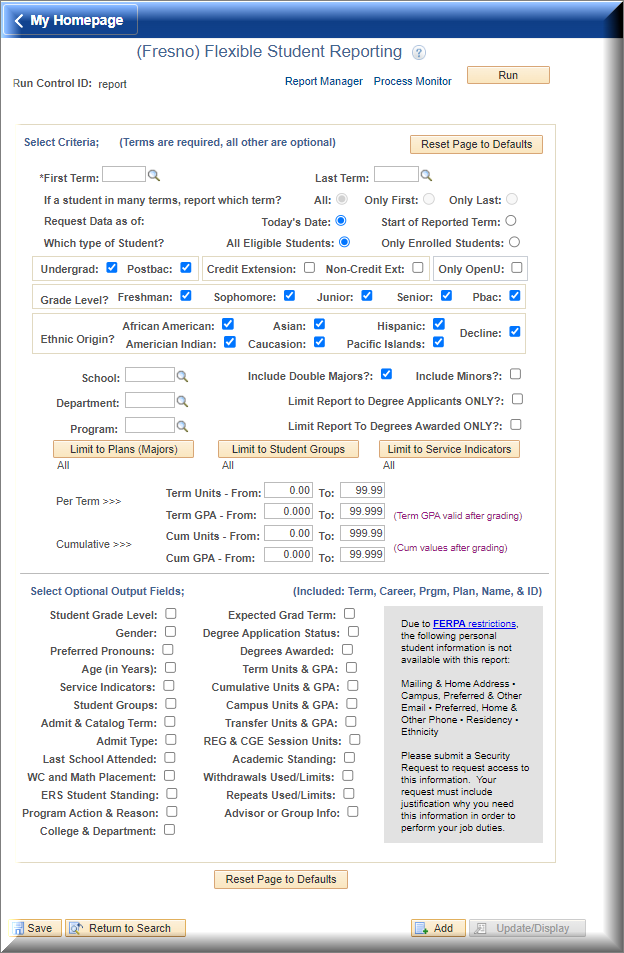
This can look confusing, but just take it one question at a time, and answer logically.
- To start a new report, click the [Reset Page to Defaults] button at the top right or center bottom of the page to clear out the full page and
start fresh.
- You must select which terms you need to report.
- Enter the earliest term you need reported into the First Term.
- If you need to report multiple terms, change the Last Term to latest term you need. If you only need one term let the Last Term stay the same as the First Term.
- If you enter different terms in the First Term and Last Term fields, if a student has data in more than one reported term, the page will allow
you to choose which terms you need reported for the student.
- Select All, if you need the student to be reported for all lines in every term which match the rest of your criteria
- Select Only First, if you need the student to be reported for all lines which match the rest of your criteria for only the earliest term in which the student has data between the First and Last terms selected.
- Select Only Last, if you need the student to be reported for all lines which match the rest of your
criteria for only the earliest term in which the student has data between the First
and Last terms selected.
- You must select which date to use to select data to report.
- Select Today’s Date to report data that is current today
- Select Start of Reported Term to report data that was current as of the first date of the reported terms
- You must select what type of enrollment you need for your report.
- Select All Eligible Students, to report all students which match the rest of your criteria, who are currently Term Activated in the terms selected.
- Select Only Enrolled Students, to report all students which match the rest of your criteria, who are currently
enrolled in classes in the terms selected.
- You may select which type of Career you need for your report.
- Select Undergrad to include all students who have not earned a bachelors degree.
- Select Postbac to include all students who have already earned a bachelors degree.
- Select Credit Extension to include students who are taking Credit classes from Continuing and Global Education.
- Select Non-Credit Ext to include students who are taking Non-Credit classes from Continuing and Global Education.
- Select Only OpenU to limit the report to students who are ONLY Credit Extension Students taking Regular University classes through the Open University
program.
Note: if you select Only OpenU, students who are not taking OpenU classes will not be included in the report!!!
- You may select which Grade Levels you need for your report.
- If only the Undergrad career is selected, only the levels which are available for Undergraduate students
may be selected. Same is true for the Postbac career.
- If only the Undergrad career is selected, only the levels which are available for Undergraduate students
may be selected. Same is true for the Postbac career.
- You may select which type Ethnicity you need for your report.
- Select which ethnic groups you need included in the report (note: N/R = Not Reported)
- Select which ethnic groups you need included in the report (note: N/R = Not Reported)
- You may limit your report to a specific School, Department or Program.
- To avoid accidental inconsistencies; Only enter the most restrictive field (In the
example: only the Department is entered)
- To avoid accidental inconsistencies; Only enter the most restrictive field (In the
example: only the Department is entered)
- You may select to also include Double Majors or Minors in your report
Note: If a student, which matches the rest of your criteria, has multiple plans (Majors, Double Majors, Minors, etc.) the student will have a separate row in the report for each plan.
- Select Include Double Majors, to include a line in your report for the students which match the rest of your criteria, who currently have Double Majors.
- Select Include Minors, to include a line in your report for the students which match the rest of your criteria,
who currently have Minors.
- You may click the check box next to Limit Report to Degree Application Only?
- If you check this box, the report will ONLY contain students who match all the other
criteria AND have applied to graduate.
- If you check this box, the report will ONLY contain students who match all the other
criteria AND have applied to graduate.
- You may click the check box next to Limit Report to Degrees Awarded Only?
- If you check this box, the report will ONLY contain students who match all the other
criteria AND have earned there degree AND have been coded in PeopleSoft
(Note: Check with Evaluations on Degree Awarding time periods. This can be several weeks after a term ends.)
- If you check this box, the report will ONLY contain students who match all the other
criteria AND have earned there degree AND have been coded in PeopleSoft
- You may click the [Limit to Plans (Majors)] or [Limit Student Groups)] or [Limit to Service Indicators] to limit the report to only the students in the groups selected.
- To avoid accidental inconsistencies; If you select plans in [Limit to Plans (Majors)], the School, Department and Program fields should be left blank.
- Use the [+] or [-] buttons on the popup page to add more or delete rows.
- You may limit the report to only students within a specific Term Units range.
- Enter the lowest limit for Term Units in the From Term Units field
- Enter the highest limit for Term Units in the To Term Units field
- You may limit the report to only students within a specific Term GPA range.
Note: The Term GPA is only greater than 0 after all grading has been completed for a term.- Enter the lowest limit for Term GPA in the From Term GPA field
- Enter the highest limit for Term GPA in the To Term GPA field
- You may limit the report to only students within a specific Cumulative Units range.
- Enter the lowest limit for Term Units in the From Cum Units field
- Enter the highest limit for Term Units in the To Cum Units field
- You may limit the report to only students within a specific Cumulative GPA range.
- Enter the lowest limit for Cum GPA in the From Cum GPA field
- Enter the highest limit for Cum GPA in the To Cum GPA field
- All reports will contain Term, Career, Program, Plan, Primary Name, Preferred Name
(if different than Primary), EmplID, and FERPA fields for the students.
- Place a check in the boxes to include additional fields on the report.
- Note: based on your security, you may see different fields than those displayed.
If you need access to restricted fields, contact the University Registrar’s Office (not Technology Services) to request needed security.
- When you have the request page filled out, click the [Run] button.
Run this report as a standard PeopleSoft Report: click here for Instructions for Running Standard Processes and Reports in PeopleSoft
If you did not send the report to yourself as an email: use the FRSR0124_<your_process_instance>.xls link to manipulate and save the report in Excel as needed.
Example Output
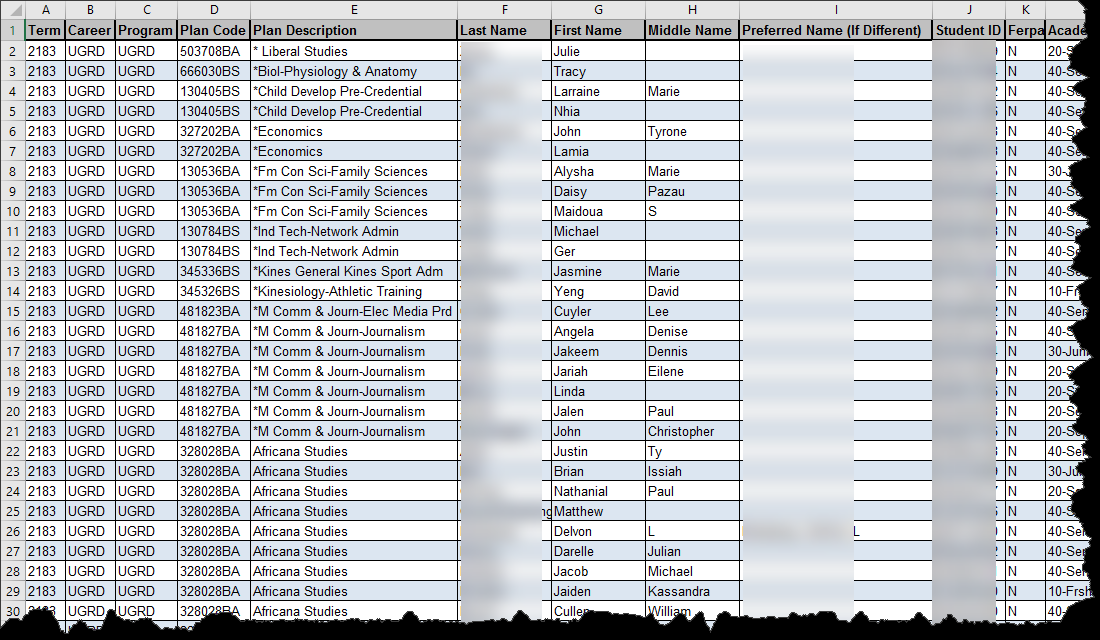
PLEASE NOTE: In order to comply with students’ FERPA rights requesting their information NOT to
be released, If a student has a “Y” in the FERPA column, they have submitted a request to the Office
of the University Registrar to restrict their information from the public.
For more information, please contact the University Registrar at 559-278-4743.
This PDF is provided as a print-only reference document and may not be fully accessible to users of assistive technology. For more information, please visit Title II Rule on Digital Accessibility page.