Running Standard Process and Reports in PeopleSoft
When Running a Standard PeopleSoft Process or Report,
- After a Run Control ID is selected or created and after the request page fields are populated, click the
[Run] button.
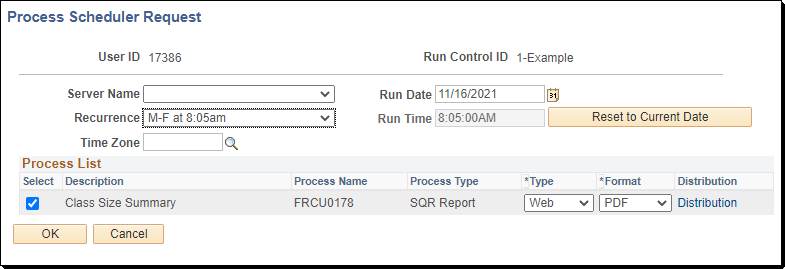
- Leave the Server Name blank
- You may schedule the process or report to run in the future by changing the Run Date or Run Time
- You may schedule this report to run repeatedly, by selecting the appropriate Recurrence
- You may change where the output goes by changing the Type to Web or Email
- If you selected Email for the Type, you would get an email notification that the process completed.
- If you need to email yourself a link to the output, use Web for the Type and then click on the Distribution link.
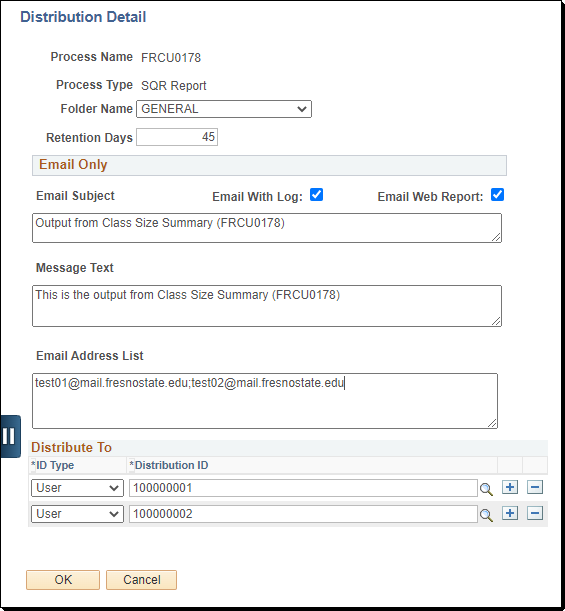
- Verify the Email Web Report is checked
- Enter what you need for the Email Subject and Message Text
- Enter all the email addresses for the people who need to receive the email (separated by semicolons)
- Note: If you are sending a link to the file, add additional users EMPLIDS to the “Distribute To” list (so they will have access to view the output files).
- Click on the [OK] button
- Click on the [OK] button (to return to the main page)
You may click on the Process Monitor link to view the progress of your process or report.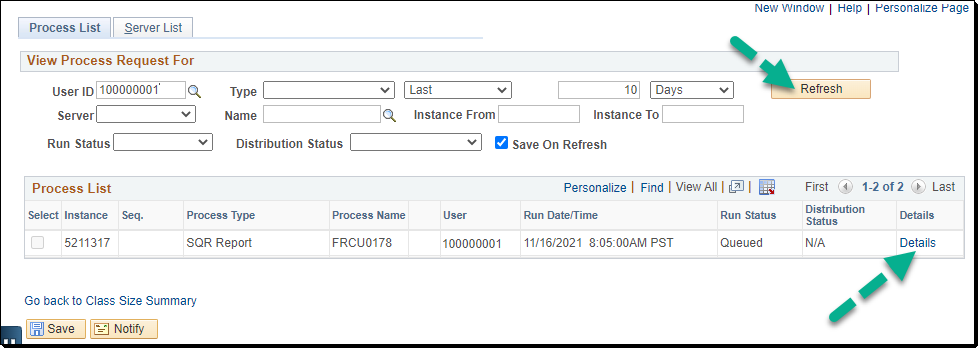
(Occasionally click the [Refresh] button to update the display).
- When the Run Status indicates Success, and the Distribution Status indicates Posted your process is complete.
- If you did not send the output to yourself in an email:
- click on the Details link
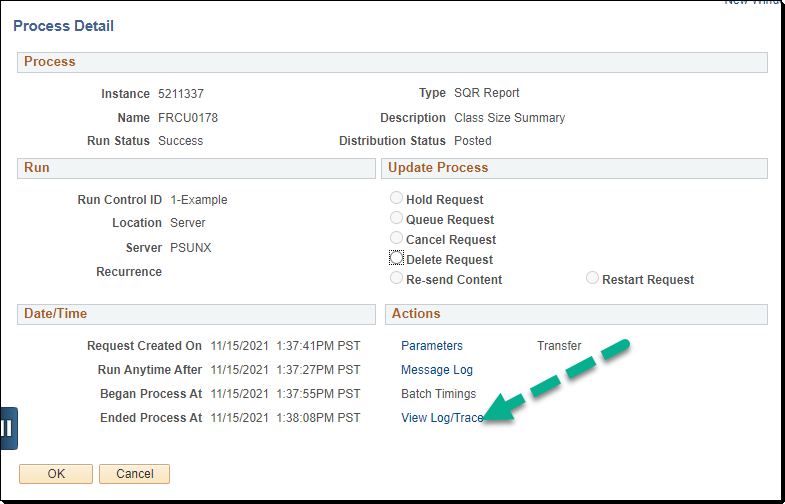
- click on the View Log/Trace line
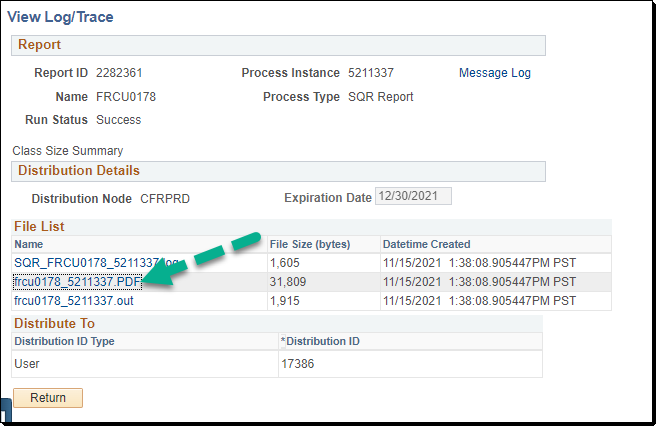
- click on the name of your file (ex: <your_file_name>.xls) link
- If you are prompted for allowing Pop-Ups, it is OK to allow All popups from this web site.
- If you are prompted if it is OK to open a file from a different format, click the [OK] or [Yes] or [Allow] button to open the report.
- In Internet Explorer you may have to modify setting to allow the report to download;
- On the IE menu, click [Tools] then [Internet Options]
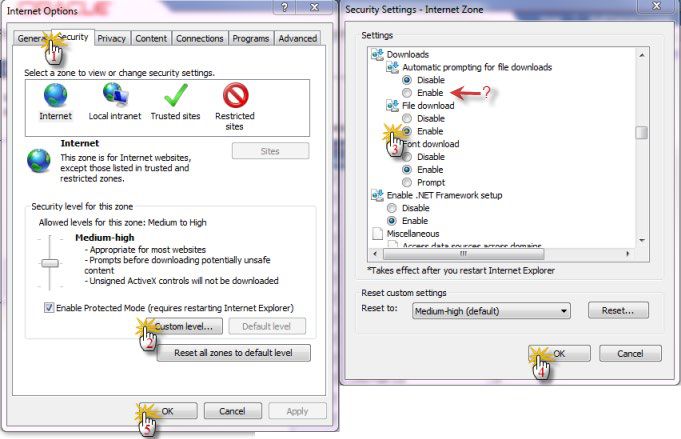
- Click on the [Security Tab] then [Custom level...] button
- Scroll down to the “Downloads” area and click on the File download [Enable] button.
Click both [OK] buttons to save your changes and exit out of the setup pages
- If this does not correct the problem, try also checking the “Automatic prompting for file downloads” button (see red arrow above).
- If you still are having browser problems, contact the help desk and ask for desktop support.
Stopping/Cancelling a Standard PeopleSoft Process or Report.
- To stop a running, queued or reoccurring report click on the Process Monitor link as above
- (Make sure that your data at the top of the page has your User ID and Last 3-10 Days,
all other fields should be blank.)
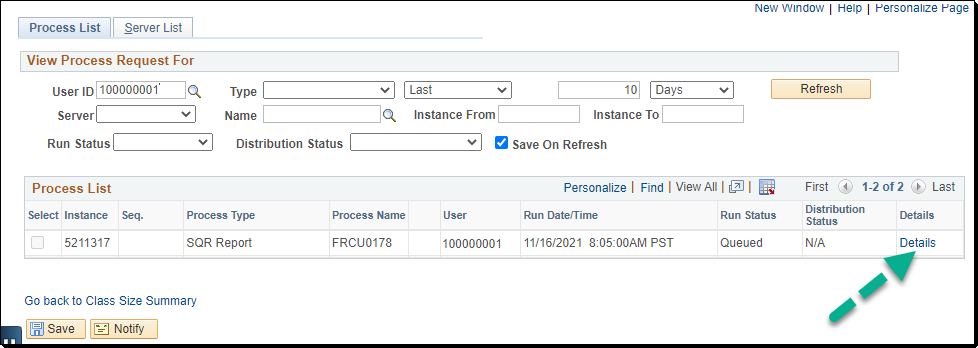
- Click on the Details link of your queued report.
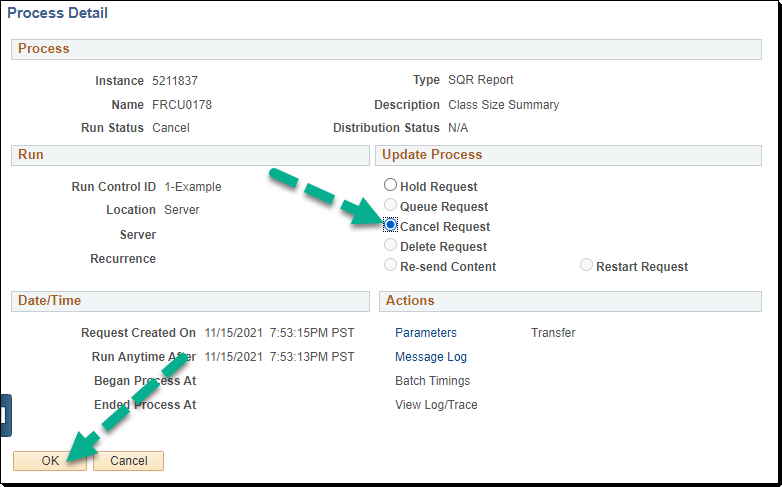
- Click the “Cancel Request” radio button
- Click the [OK] button.
- When you click the [Refresh] button on the Main Process monitor page, you should see your process cancelling, and after a few seconds it should be cancelled.
This PDF is provided as a print-only reference document and may not be fully accessible to users of assistive technology. For more information, please visit Title II Rule on Digital Accessibility page.